---
title: Design Systems 2.0
description: Teach v0 to build with your team's components, tokens, and design system conventions.
product: v0
type: guide
prerequisites:
- /docs/quickstart
related:
- /docs/figma
- /docs/design-mode
- /docs/instructions
- /docs/teams
---
# Design Systems 2.0
Design Systems 2.0 lets you teach v0 your design system once, so chats can build with your real components, tokens, and conventions.
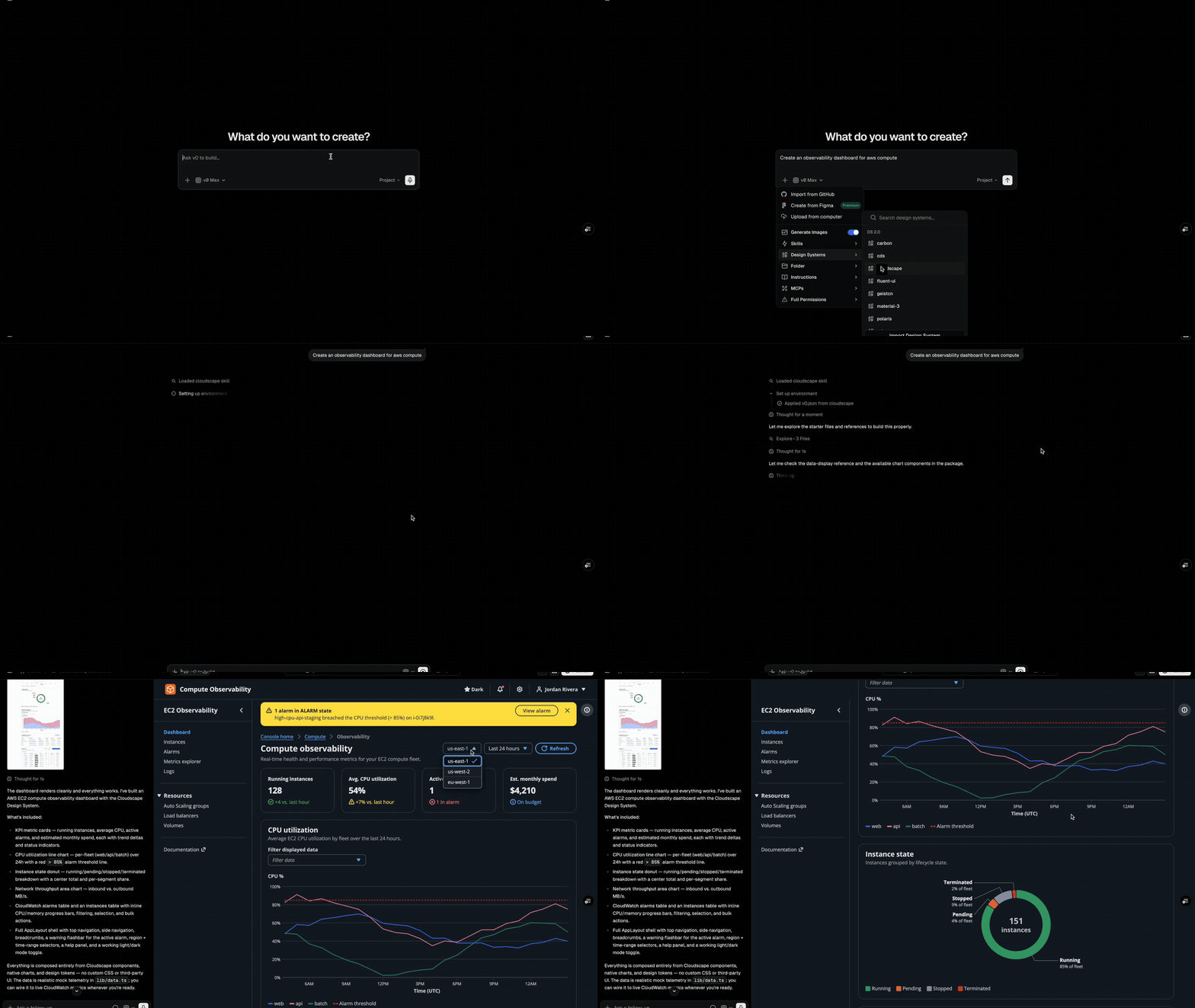
v0 building an observability dashboard with Cloudscape (Amazon's open-source
design system).
A design system is saved as a **skill** in your current scope, such as a team or personal workspace. A skill is a small, focused set of instructions v0 keeps with your work and pulls in when relevant. A design system skill is not a copy of your docs; it is an adapter that tells v0 where your source lives, which components, props, and tokens are safe to use, and how to wire the system into new apps.
Looking for the legacy `shadcn/ui` registry guide? See [Design systems](/docs/design-systems).
## Before you begin [#before-you-begin]
Gather any sources that define your design system today. You do not need all of these to start; add what you have, and if v0 needs more context it will ask follow-up questions during import.
* **Installable design system package**: A public or private npm package, `.tgz`/`.tar` archive, or source directory with its own `package.json`. If you only have loose CSS, theme files, Figma frames, or components, v0 asks whether you can provide a package or want v0 to create a new installable package from those sources.
* **Design system source**: The repository or package where components and tokens live.
* **A real app that consumes it**: Often the most valuable source because it shows providers, global styles, fonts, theme setup, and correct component usage. Your marketing site or main dashboard works well.
* **Storybook, docs, or design guidelines**: Links that explain components, props, tokens, layout rules, and brand conventions.
* **Figma frames or nodes**: Visual references that show composition, density, typography, and component usage.
* **Private package credentials**: Add tokens such as `NPM_TOKEN` as [Development shared environment variables](https://vercel.com/docs/environment-variables/shared-environment-variables) so v0 can install private packages.
* **Install instructions and examples**: Include READMEs, setup commands, and examples of correct usage for common components.
Keep sources consistent. Avoid mixing unrelated design systems, frameworks,
or old docs that contradict the current package API.
## Import a design system [#import-a-design-system]
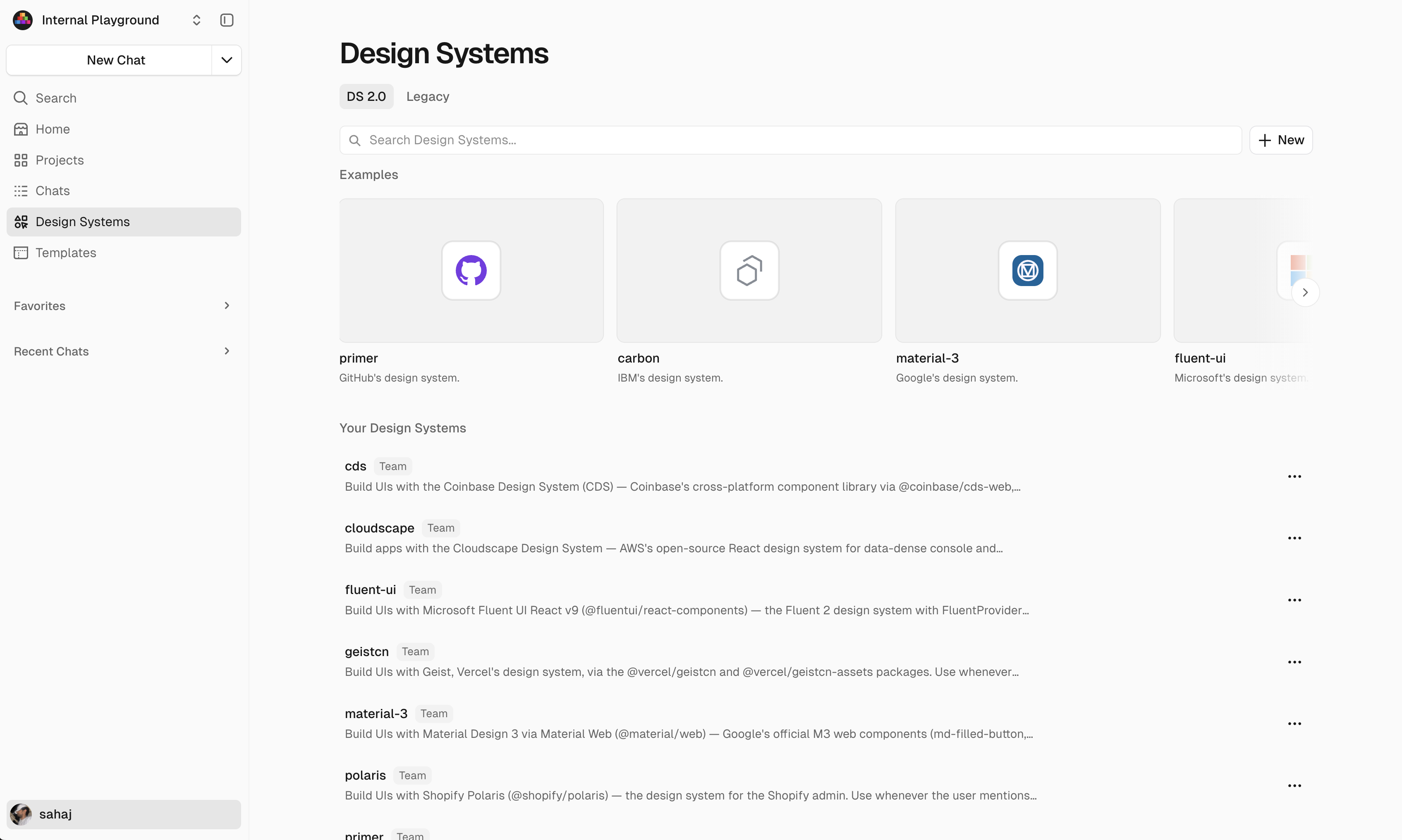
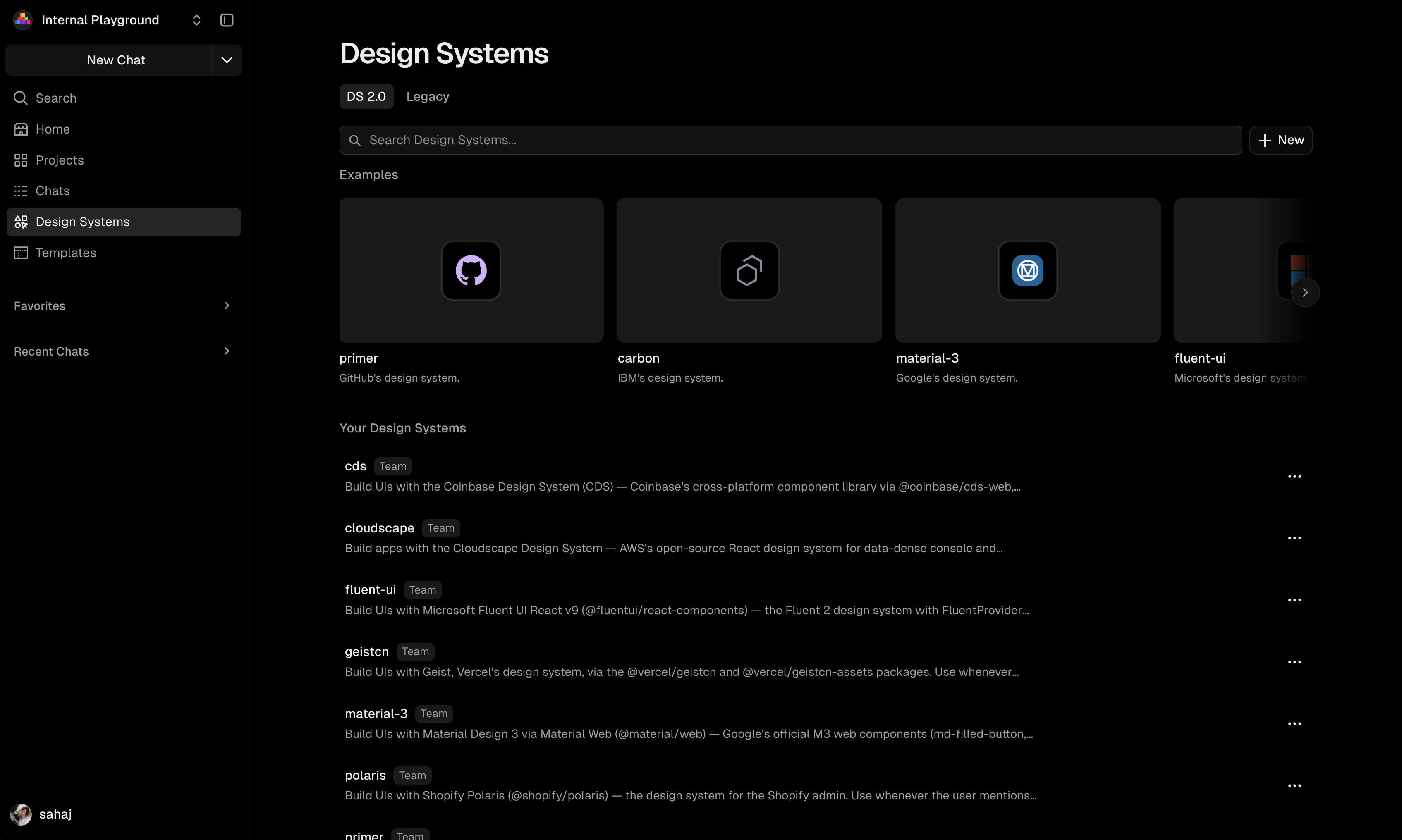
Start a new import from the [Design Systems page](https://v0.app/design-systems). Point v0 at the sources that define your system, such as the GitHub repository, a consumer app, Figma frames, and docs. v0 reads them, builds a starter app to verify it understands your system, and saves a skill in the current scope. If a team-scoped import cannot be saved to the team, v0 asks before saving it as a personal-only skill.
### 1. Add your sources [#1-add-your-sources]
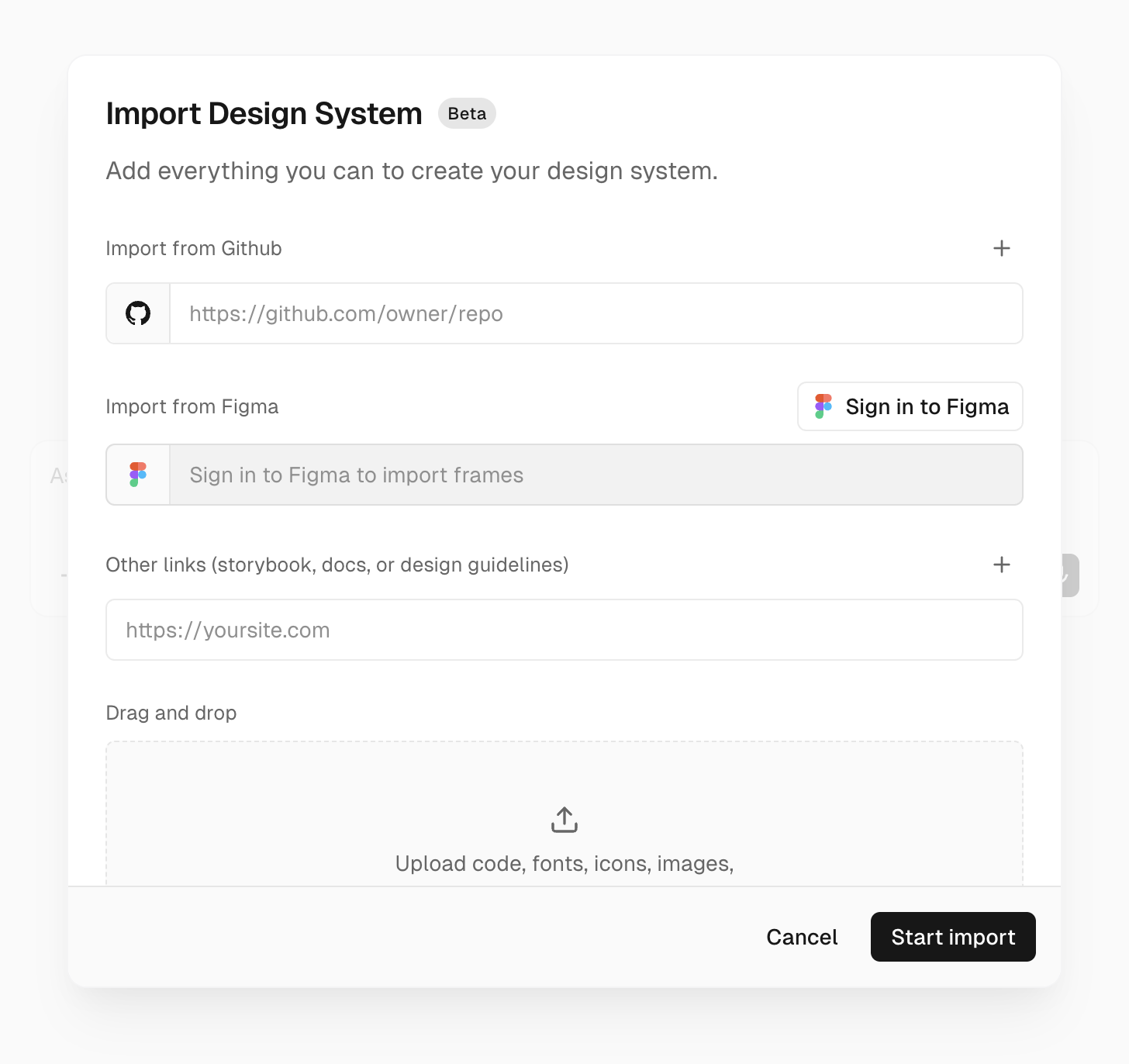
In the import form, add any sources v0 should use to learn your system:
* **GitHub repositories** for the design system source or apps that consume it.
* **Figma frames or nodes** for visual reference. Sign in to Figma, then paste links to specific frames or nodes. v0 imports a screenshot and extracted frame context so it can use the design as reference.
* **Links** such as Storybook, docs sites, or design guidelines.
* **Attachments** such as screenshots, ZIPs, exported packages, or `.tgz` package archives.
v0 grounds itself in the real source. If a component, prop, or token cannot be verified from the sources, v0 should not use it.
### 2. Add environment variables [#2-add-environment-variables]
If your design system depends on private packages, add the required credentials as [shared environment variables](https://vercel.com/docs/environment-variables/shared-environment-variables) for the **Development** environment. For example, add `NPM_TOKEN` when packages are installed from a private npm registry.
You need at least the [Developer role](https://vercel.com/docs/rbac/access-roles#developer-role) on Vercel to use Development environment variables in v0. If environment variables are not an option, attach `.tgz` package archives instead.
### 3. Add notes [#3-add-notes]
Notes are optional, but useful for information that is hard to infer from source code:
* Global styles, providers, fonts, or required wrappers
* Deprecated components, anti-patterns, or gotchas
* Component conventions v0 should prefer or avoid
### 4. Understand `v0.json` [#4-understand-v0json]
During import, v0 stores the reusable setup in `v0.json`. You usually do not need to edit this by hand, but the file is the source of truth for what gets applied when the skill is used.
A design system `v0.json` follows this shape:
```json
{
"version": 1,
"referenceWorkspace": {
"sources": [
{
"id": "github-repo:owner/repo:main",
"type": "github-repo",
"repo": { "org": "owner", "name": "repo" },
"ref": "main",
"mountPath": "/vercel/share/v0-reference-workspace-sources/owner/repo/main"
}
]
},
"environment": {
"providers": [
{ "type": "shared-env-vars", "ids": ["env_var_id"] }
]
},
"starter": {
"source": "skill-directory",
"path": "assets/starter"
}
}
```
* `version`: The `v0.json` schema version. Use `1`.
* `referenceWorkspace.sources`: Read-only GitHub sources v0 can browse for reference. Each source includes the repo, ref, generated id, and mount path. A `v0.json` can include up to three reference sources.
* `environment.providers`: Environment variables to link when the design system is applied. Design system imports typically use `shared-env-vars` with Development shared environment variable ids. The spec also supports `vercel-project` providers with a `projectId` and environment variable ids when applicable.
* `starter`: The starting app v0 applies before building. Design system skills usually use `skill-directory` with a path such as `assets/starter`. The other supported starter sources are `empty` and `v0-default`.
Figma frames, documentation links, and attachments are import inputs. v0 distills them into the saved skill instructions and references rather than keeping them as long-lived `v0.json` sources.
### 5. Start the chat and review the starter [#5-start-the-chat-and-review-the-starter]
When you submit the form, v0 starts a dedicated chat and works through the import:
1. Discovers your sources and design system primitives.
2. Builds and previews a small starter app using your design system.
3. Pauses for your review before saving anything.
4. Saves the skill only after you approve it.
5. Validates the saved skill before confirming and gives you verified links to use it.
If v0 hits a blocker, such as a repository it cannot access or a package it cannot install, it stops and asks you to fix the blocker.
Take the review seriously. v0 saves this starter into the skill, and every app you build with the design system later starts from it. Check both how it looks and how it's wired up: components and tokens, providers, theme setup, fonts, and global styles. If anything is off, even a small detail, ask v0 to fix it in the chat and re-check before you approve. A correct starter means every future app begins from a working foundation instead of inheriting the same issue each time.
Once you approve, your design system lives in the saved skill, ready to use anywhere. The chat where you imported it is only the starting point — attach the skill in a new chat or keep building in this one.
## Use a saved design system [#use-a-saved-design-system]
Saved skills appear on the **Design Systems** page under **Skills**.
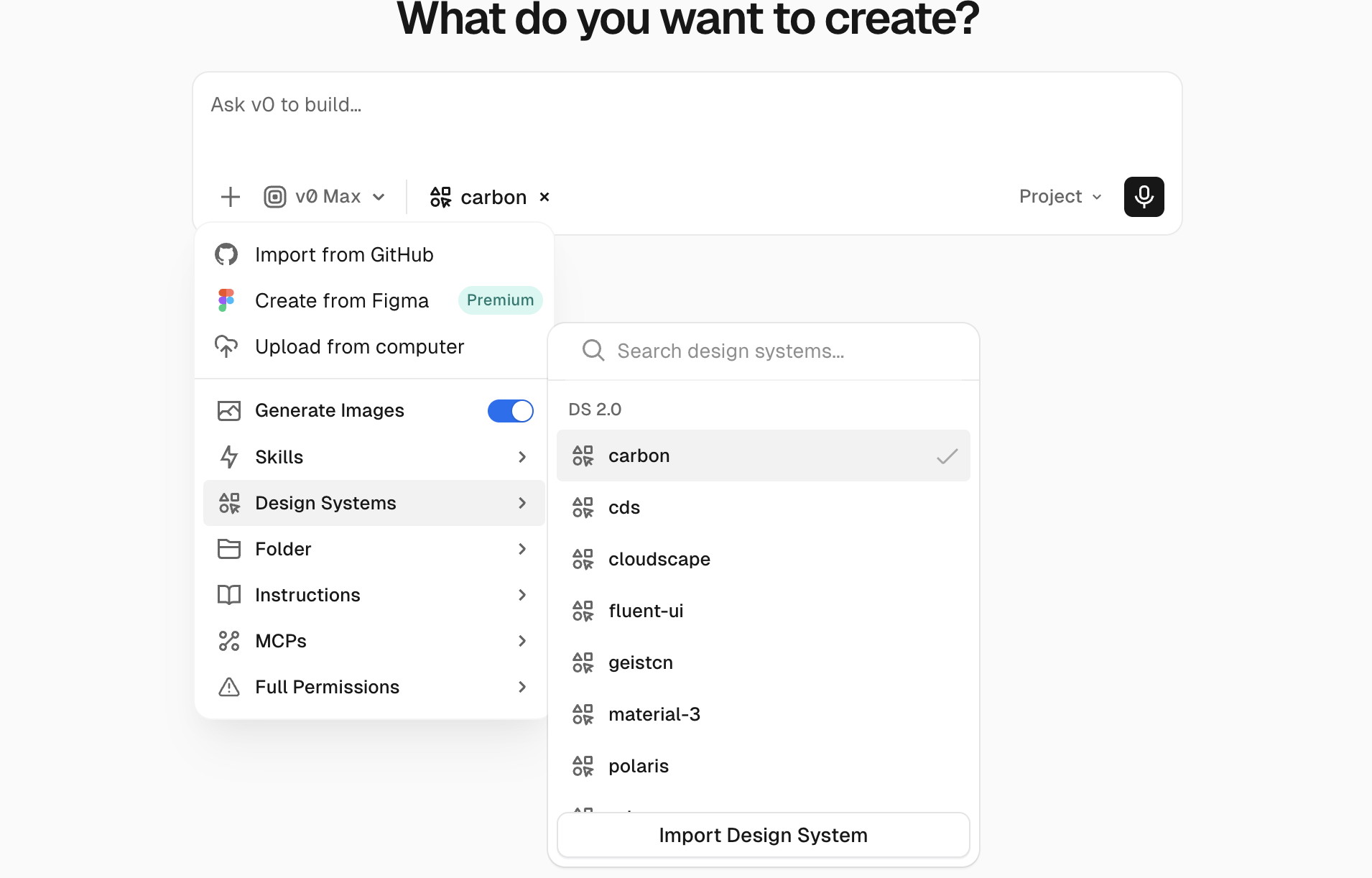
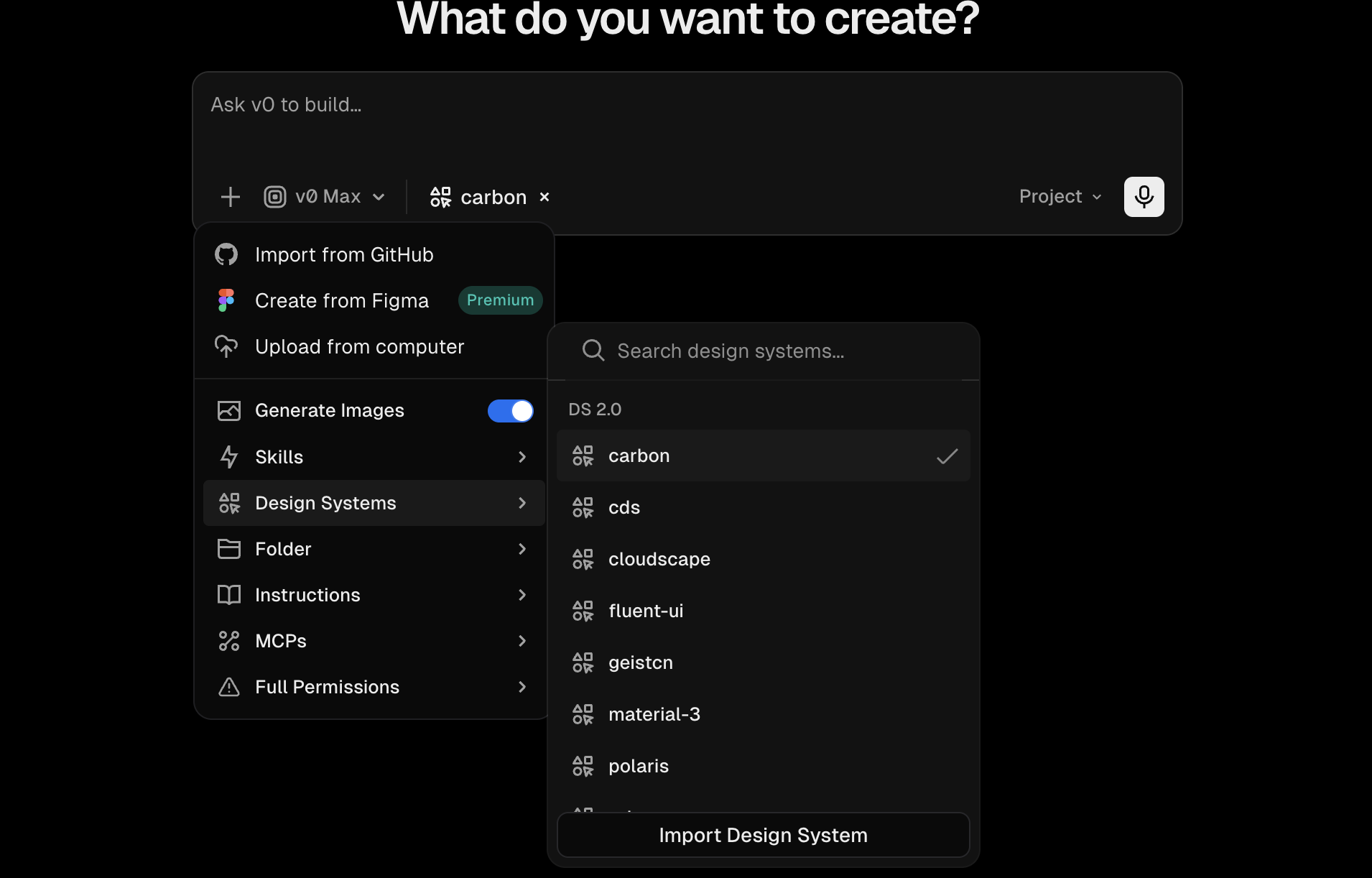
To use one, attach it from the prompt toolbar or reference it directly in your prompt. You can also try built-in examples from the Design Systems page or toolbar.
## Keep a design system up to date [#keep-a-design-system-up-to-date]
To update a skill, ask v0 in a chat and include what changed, such as release notes, migration guides, new package versions, or updated GitHub sources:
> Update Acme UI to v2.3. Release notes and migration guide: \[links]. The `Button` component renamed its `type` prop to `variant`.
v0 edits the skill and re-checks the starter app so it doesn't regress. For repeatable imports, pin GitHub sources to a branch or ref and pin package versions in the starter's `package.json`.
Existing projects don't update automatically. To adopt a new version, ask v0 to update that app's code with the updated skill.
## Best practices [#best-practices]
* Include both the design system source and at least one real consumer app.
* Prefer current docs, current package versions, and working examples over exhaustive but stale references.
* Add credentials for private packages up front, or attach `.tgz` archives when credentials cannot be shared.
* Document global setup: providers, theme wrappers, fonts, CSS imports, Tailwind config, and required environment variables.
* Keep sources focused on one design system and one framework stack when possible.
## FAQ [#faq]
### How do I update a design system after a new package version or GitHub source update? [#how-do-i-update-a-design-system-after-a-new-package-version-or-github-source-update]
Ask v0 to update the skill in a chat. Include the new version, changed source, release notes, migration guide, and any breaking changes. v0 updates the saved skill and verifies the starter app again.
### Can v0 use private packages? [#can-v0-use-private-packages]
Yes. Add package credentials such as `NPM_TOKEN` as Development shared environment variables during import. You need at least the [Developer role](https://vercel.com/docs/rbac/access-roles#developer-role) on Vercel to use them in v0. If that is not possible, attach `.tgz` package archives.
### Will existing projects automatically update when the skill changes? [#will-existing-projects-automatically-update-when-the-skill-changes]
No. Updating a skill changes the reusable instructions and starter for future work. For existing projects, ask v0 to update the app code with the latest version of the skill.
### Who can create, edit, or delete a design system skill? [#who-can-create-edit-or-delete-a-design-system-skill]
By default, any team member can create, edit, and delete skills. On **Enterprise** plans, team owners can turn on **Restrict Memories & Skills** in [workspace settings](https://v0.app/settings/workspace) so only owners can change team memories and skills, while other members keep read-only access.